
Stop Manually Checking Accounts: A Free Google Ads MCC Script to Alert You on Performance Drops
Managing a large portfolio of Google Ads accounts? The “Monday Morning Panic” is real. You log in, only to realize a key client’s account stopped serving impressions on Friday afternoon due to a payment issue or a disapproval, and nobody noticed for 48 hours.
Manual checks are inefficient and prone to human error. As digital marketers, our time is better spent on strategy, not basic health checks.
Today, I’m sharing a simple but powerful Google Ads MCC Script that automates this process for you.
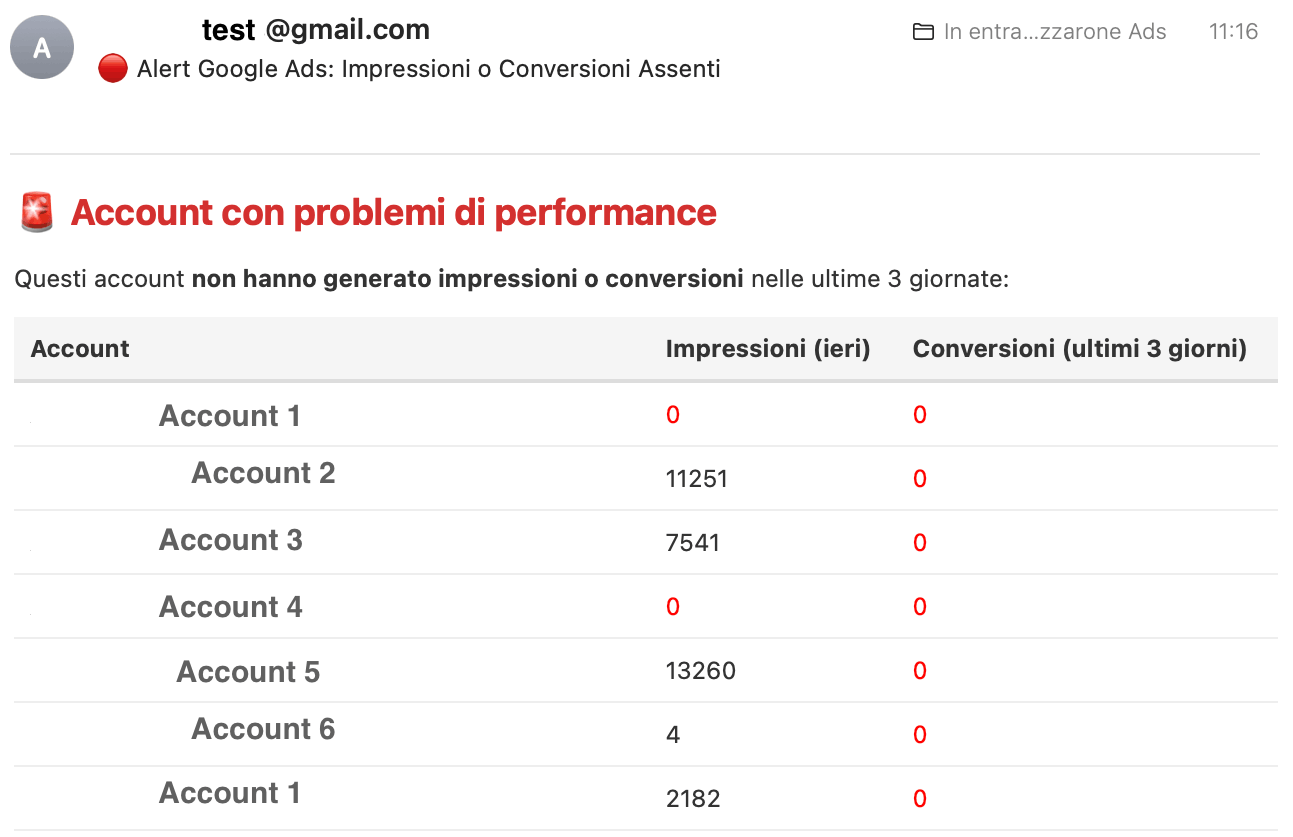
What this script does
This script runs at the MCC (Manager) level. It iterates through all your client accounts and checks for two critical red flags:
- Zero Impressions (Yesterday): Indicates the account might be paused, disapproved, or out of budget.
- Zero Conversions (Last 3 Days): Indicates a potential tracking break or a severe drop in traffic quality.
If any account matches these criteria, the script sends an email directly to your inbox with a summary table. If everything is running smoothly, it stays silent.
Copy and paste the code below into your Google Ads Manager account.
(Note: Remember to update the email variable at the top with your own address).
					// Accounts alert Script by Francesco Azzarone
// custom requests? <span
                data-original-string='02I9gToyUSaFzb5TR6kyDw==aablO0BJX+rjAGj52zLPF3lN5ZgsY59b6ENyqmVseZpwcvlqfgULe4j8tSFOIZ0AoLO'
                class='apbct-email-encoder'
                title='This contact has been encoded by Anti-Spam by CleanTalk. Click to decode. To finish the decoding make sure that JavaScript is enabled in your browser.'>fr<span class="apbct-blur">*******************</span>@<span class="apbct-blur">******</span>ax.com</span>

// Enter your data here >

function main() {
  var email = ""; // ← Inserisci qui la tua email
  var subject = "🔴 Alert Google Ads: Impressioni o Conversioni Assenti";
  var htmlBody = `
    <html>
      <body style="font-family: -apple-system, BlinkMacSystemFont, 'Segoe UI', Roboto, Helvetica, Arial, sans-serif; color: #333;">
        <h2 style="color: #d32f2f;">🚨 Account con problemi di performance</h2>
        <p>Questi account <strong>non hanno generato impressioni o conversioni</strong> nelle ultime 3 giornate:</p>
        <table style="border-collapse: collapse; width: 100%; margin-top: 10px;">
          <thead>
            <tr style="background-color: #f5f5f5;">
              <th style="text-align: left; padding: 8px; border-bottom: 2px solid #ddd;">Account</th>
              <th style="text-align: left; padding: 8px; border-bottom: 2px solid #ddd;">Impressioni (ieri)</th>
              <th style="text-align: left; padding: 8px; border-bottom: 2px solid #ddd;">Conversioni (ultimi 3 giorni)</th>
            </tr>
          </thead>
          <tbody>
  `;

  var accountIterator = MccApp.accounts().get();

  while (accountIterator.hasNext()) {
    var account = accountIterator.next();
    MccApp.select(account);

    var statsToday = AdsApp.currentAccount().getStatsFor("TODAY");
    var statsYesterday = AdsApp.currentAccount().getStatsFor("YESTERDAY");
    var statsWeek = AdsApp.currentAccount().getStatsFor("THIS_WEEK_MON_TODAY");

    var impressionsYesterday = statsYesterday.getImpressions();
    var conversionsToday = statsToday.getConversions();
    var conversionsYesterday = statsYesterday.getConversions();
    var conversionsWeek = statsWeek.getConversions();

    // Approssimazione: conversioni negli ultimi 3 giorni = somma diretta
    var totalConversions = conversionsToday + conversionsYesterday + (conversionsWeek - conversionsToday - conversionsYesterday);

    if (impressionsYesterday === 0 || totalConversions === 0) {
      var accountName = account.getName();
      var accountId = account.getCustomerId();

      var impressionStyle = impressionsYesterday === 0 ? "color:red;" : "";
      var conversionStyle = totalConversions === 0 ? "color:red;" : "";

      htmlBody += `
        <tr>
          <td style="padding: 8px; border-bottom: 1px solid #eee;">${accountName} (${accountId})</td>
          <td style="padding: 8px; border-bottom: 1px solid #eee; ${impressionStyle}">${impressionsYesterday}</td>
          <td style="padding: 8px; border-bottom: 1px solid #eee; ${conversionStyle}">${totalConversions}</td>
        </tr>
      `;
    }
  }

  htmlBody += `
          </tbody>
        </table>
        <p style="margin-top: 20px; font-size: 0.9em; color: #666;">Email generata automaticamente da Google Ads Script MCC.</p>
      </body>
    </html>
  `;

  MailApp.sendEmail({
    to: email,
    subject: subject,
    htmlBody: htmlBody
  });
}
How to install the script
To install this Google Ads script in your account, follow these steps:
- Go to your Google Ads Manager Account (MCC).
- Click the Tools and settings icon in the top menu.
- Click the + button to create a new script.
- Click Authorize (you will need to grant permission to send emails and access accounts).
- Preview the script to ensure it runs without errors.
- Save and set the Frequency to Daily (I recommend running it at 8:00 AM or 9:00 AM so the report is ready when you start your day).